

Creator Review
Use Creator Review to decide which creators join your campaign or bulletinAn open opportunity a brand posts for creators to apply to.. Your Fohr team proposes the lineup and explains each choice. You approve or pass, ask questions in comments, and your Fohr team handles everything after that.
The following image shows a review as you see it:
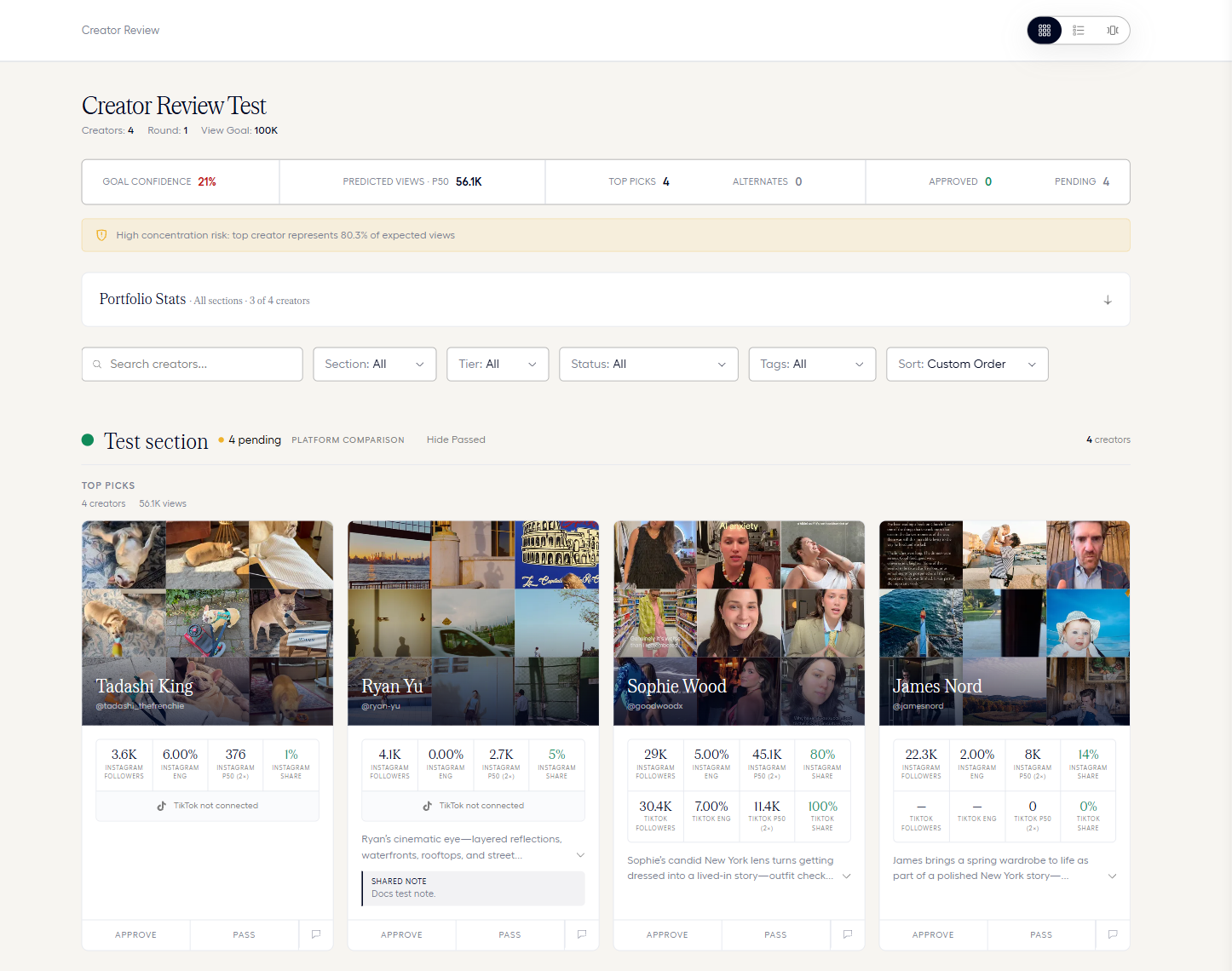
The following diagram shows the whole flow, from opening the review to your Fohr team’s follow-up after you decide:
Open the review link
Open the review from the link your Fohr team sends you. You need no setup of your own.
If the review looks empty, your Fohr team has not shared the lineup yet.
- Open the review link. Open the review from the link your Fohr team sends you. You need no setup of your own. If the review looks empty, your Fohr team has not shared the lineup yet.
- Scan the lineup. Your Fohr team groups creators into sections, such as a part of the campaign, a category, an audience, or a platform. Inside a section, creators sit in Top Picks or Alternates. Top Picks are the creators your Fohr team proposes. Alternates are backups, and your Fohr team may choose not to show them.
- Open a creator. Select a creator to read WHY THIS CREATOR, their SAMPLE CONTENT, and their statistics for each platform.
- Approve or pass. Select APPROVE or PASS on each creator. Your Fohr team may require a reason when you pass. Decisions save as you make them, and no separate step submits the review. Your Fohr team may add creators later as a new round. Everything from earlier rounds stays, along with your decisions on it.
- Comment with your Fohr team. Select Open comments on a creator to start or read a thread. Each thread is filed under the creator it is about, and that creator is not notified. This keeps the back and forth out of email.
- Your Fohr team takes over. Approving a creator saves your decision. It does not put them under contract. Your Fohr team handles everything that follows.
Before you start
Open the review from the link your Fohr team sends you. Your Fohr team sets up everything else. If the review looks empty, see Troubleshooting.
How to review the lineup
Follow these steps to read the lineup and record a decision on each creator:
- Open the review from your Fohr team’s link.
- Scroll to a sectionA named group of creators in a review, such as one campaign category., or choose one from the Section filter at the top of the lineup. Each sectionA named group of creators in a review, such as one campaign category. groups creators you can compare with each other.
- Select a creator’s card. This opens the creator’s details panel.
- In the details panel, read WHY THIS CREATORThe written case for a creator. It shows under WHY THIS CREATOR. and SAMPLE CONTENTPinned posts that back up a creator's rationale. The brand sees them under SAMPLE CONTENT.. These two parts explain why your Fohr team chose the creator.
- To ask your Fohr team a question, select the comments icon at the top of the details panel. See Discuss a creator with your Fohr team.
- Select Approve or Pass at the bottom of the details panel. Your decision saves at once, and you can undo it. See Approve or pass.
- Select the arrows next to the creator count, for example 2 of 2, to move to the previous or next creator. This keeps the details panel open, so you can repeat steps 4 to 6 for each creator.
The following interactive demo shows this process in the product, from reading a creator to approving or passing:
What you are looking at
Your Fohr team groups the lineup into sections. A section can stand for a content category, an audience, a platform, or one part of your campaign or bulletinAn open opportunity a brand posts for creators to apply to.. Within a sectionA named group of creators in a review, such as one campaign category., you compare creators who are meant for the same job.
Inside a sectionA named group of creators in a review, such as one campaign category., creators sit in one of two lanes, as the following table shows.
| Lane | What it means |
|---|---|
| Top Picks | The creators your Fohr team proposes for your campaign or bulletinAn open opportunity a brand posts for creators to apply to.. |
| Alternates | Backups your Fohr team can bring in if you pass on a top pick. |
If you see only Top PicksThe lane that holds the lineup you propose to the brand. The forecast counts these creators., your Fohr team chose not to show AlternatesThe backup lane. These creators step in if the brand passes on a top pick..
Use the Grid, List, and Theatre layout buttons to change how the lineup looks. Each layout shows the same creators and decisions.
Figures for the whole lineup
The top of the review sums up the lineup. The following table lists each figure.
| Figure | What it tells you |
|---|---|
| CONFIDENCE | How likely the lineup is to reach the views goalThe total views you want the lineup to deliver. your Fohr team set. It shows a dash until your Fohr team sets a goal. |
| EXPECTED VIEWS · P75A middle views estimate. Fohr gives a 75% chance of reaching at least this many views. | The views the lineup is expected to deliver. P75A middle views estimate. Fohr gives a 75% chance of reaching at least this many views. names the baselineThe percent chance Fohr gives of reaching at least the projected views. P90 is the cautious reading and P50 is the expected one. your Fohr team chose for the estimate. |
| TOP PICKS and ALTERNATES | How many creators sit in each laneOne of the two places a creator sits in a section, Top Picks or Alternates.. |
| APPROVED and PENDING | How many creators you have approved, and how many still wait for a decision. |
When one creator carries most of the expected views, a High concentration risk message names their share. Expected figures are planning estimates based on past performance.
A creator’s details
Each creator’s card shows their figures per platform. INSTAGRAM FOLLOWERS and TIKTOK FOLLOWERS are separate figures, and SHARE is the creator’s part of the lineup’s expected views on that platform. TikTok not connected means the creator has no connected TikTok account, so no TikTok figures exist for them.
Selecting a creator opens their details panel. The following table lists the parts you see there.
| Part | What it tells you |
|---|---|
| INSTAGRAM STATS and TIKTOK STATS | FOLLOWERS, ENG RATE (engagement rate), EXPECTED VIEWS, and CONTRIBUTION for each platform. |
| WHY THIS CREATOR | The reasons your Fohr team chose this creator, written for this campaign or bulletinAn open opportunity a brand posts for creators to apply to.. |
| SAMPLE CONTENT | Posts your Fohr team picked to back up those reasons. One of them is featured, as the single post that stands for this creator. |
| SAMPLE CONTENT SUGGESTIONS | More of the creator’s posts, each with its view count. |
| TAGS | Labels your Fohr team uses to group creators across sections. You can see and filter by tags. Your Fohr team adds and edits them. |
Your Fohr team may add more creators later, as a new roundA published lineup the brand can see. The first one you send is Round 1.. Earlier roundsA published lineup the brand can see. The first one you send is Round 1. and the decisions you made on them stay in the review.
Approve or pass
Each creator’s card carries APPROVE and PASS, and the details panel carries Approve and Pass at the bottom. Decisions save as you make them. The review has no submit step, so you can stop and return at any time.
The following table shows how each decision looks on the card and how to undo it.
| Decision | The card shows | To undo it |
|---|---|---|
| APPROVE | An APPROVED badge. | Select UNDO APPROVED. |
| PASS | A PASSED badge, and your reason under PASS REASON. | Select UNDO PASSED. |
Undoing a decision returns the creator to pending. A passed creator stops counting toward the lineup’s figures, so EXPECTED VIEWS and TOP PICKSThe lane that holds the lineup you propose to the brand. The forecast counts these creators. drop as soon as you pass.
Pass reasons
Your Fohr team may require a reason when you pass on a creator. In that case, PASS opens Why pass on followed by the creator’s name. The dialog offers these 6 reasons:
- Not a brand fit
- Audience mismatch
- Wrong aesthetic / vibe
- Worked with competitor
- Underperformed in the past
- Low engagement / content quality
Selecting a reason passes the creator at once. To give a different reason, write it under OR WRITE YOUR OWN and select Pass with note. Select Cancel to close the dialog without passing.
Approving a creator saves your decision. It does not put them under contract. Your Fohr team handles every next step. Creators receive no notification of your decisions.
Discuss a creator with your Fohr team
Select the comments icon (Open comments) on a creator’s card, or at the top of the details panel, to start or read a thread with your Fohr team. Write in Type your message here. and select the send icon.
Each thread is filed under the creator it is about, and that creator is not notified. Your questions and your Fohr team’s answers sit next to the creator, instead of in email.
Use a comment or a note, depending on the job:
| Type | Use when |
|---|---|
| Comment | You want an answer. For example, ask whether a creator has worked with a competitor, or whether an alternate could replace a top pick. |
| Note | You want to record something that stays true about working with that creator. |
To add a note, select the note icon beside Pass in the details panel. In Note on followed by the creator’s name, write the note and select Save note.
Find what still needs a decision
Use the filters over the lineup to narrow it to what you are working on. The following table lists each one.
| Filter | What it does |
|---|---|
| Search creators… | Finds creators by what you type. |
| Section | Shows the creators in one sectionA named group of creators in a review, such as one campaign category.. |
| Tier | Shows the creators in one tier. |
| Status | Shows the creators at the status you choose, so you can find the ones still waiting for a decision. |
| TagsTags the Fohr team adds to a creator. The brand can see them and filter by them but cannot add them. | Shows the creators that carry the tag you choose. |
| Sort | Changes the order. Custom Order is the order your Fohr team set. |
| Hide Passed | Sits next to each sectionA named group of creators in a review, such as one campaign category.’s name and hides passed creators, which otherwise stay on screen with a PASSED badge. It then reads Show Passed, which shows them again, for example to revisit a decision or explain one to your Fohr team. Passed creators also show again each time the page reloads. |
If a creator is gone, a filter is hiding them. See Troubleshooting.
Troubleshooting
The following 2 questions come up most often when you review a lineup:
The review is empty #
Your Fohr team has not shared the lineup yet. Ask your Fohr team when it will be ready.
A creator disappeared after you made a decision #
Hide Passed is hiding them. When it is active, the button next to the sectionA named group of creators in a review, such as one campaign category.’s name reads Show Passed. Select Show Passed to see passed creators again. If the creator is still missing, set Status back to All.